
 Login
Login- The Basics of File Permissions
- Using chmod for Changing Permissions
- Symbolic Mode
- Numeric Mode
- Changing File Ownership with chown
- Combining chmod and chown
- Best Practices for File Permissions
- Conclusion
Understanding file permissions is crucial for effective system administration and security in Unix-like operating systems. Two fundamental commands, chmod and chown, play key roles in managing these permissions, ensuring that the right users have access to the files they need while protecting sensitive data.
The Basics of File Permissions
Every file and directory in a Unix-like system comes with permissions that dictate who can read, write, or execute the file. File permissions are typically represented by a combination of three types of users:
- Owner: The user who created the file.
- Group: The group of users that the owner belongs to.
- Others: All other users on the system.
Permissions can be categorized as:
- Read ®: Allows viewing the contents of the file.
- Write (w): Allows modifying or deleting the file.
- Execute (x): Allows running the file as a program.
These permissions can be expressed using symbolic notation (r, w, x) or numeric mode (0-7).
Using chmod for Changing Permissions
The chmod command is vital for modifying file permissions. It allows administrators to set permissions using either symbolic notation or numeric mode.
Symbolic Mode
In symbolic mode, you modify permissions using the following syntax:
chmod [who][+|-|=][permissions] filename
- who can be
u(user/owner),g(group),o(others), ora(all). - + adds permissions, – removes permissions, and = sets exact permissions.
For example, to add execute permission for the user on a file named script.sh, you would use:
chmod u+x script.sh
Numeric Mode
In numeric mode, you use a three-digit number, where each digit represents the permissions for the owner, group, and others, respectively. The values correspond to:
- Read: 4
- Write: 2
- Execute: 1
For example, the command:
chmod 755 script.sh
sets permissions so that the owner can read, write, and execute (7), while the group and others can read and execute (5).
Changing File Ownership with chown
The chown command allows you to change the ownership of a file or directory. This command can be particularly useful when transferring files between users or changing the ownership due to changes in project responsibility.
The basic syntax is:
chown [new_owner]:[new_group] filename
You can also simply change the owner without modifying the group:
chown new_owner filename
For instance, to change the owner of a file named report.txt to alice, you would use:
chown alice report.txt
Combining chmod and chown
In many scenarios, you may find it necessary to use both chmod and chown commands. After transferring a file or assigning a project to a new user, you might want to modify both the file’s ownership and set appropriate permissions. A combined approach ensures both security and accessibility.
Best Practices for File Permissions
- Principle of Least Privilege: Grant only the permissions necessary for users to perform their job functions to minimize risk.
- Regular Audits: Regularly review permissions and ownership of files, especially in shared environments.
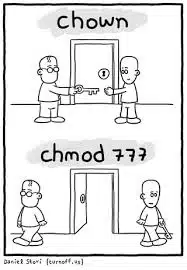
- Avoid Using
chmod 777: This command grants all permissions to everyone, creating a significant security risk. - Use Groups Wisely: Organize users into groups and assign group permissions instead of modifying individual user permissions frequently.
Conclusion
Understanding and effectively using chmod and chown elevates your ability to manage files and permissions efficiently in Unix-like systems. By mastering these commands, you can safeguard sensitive data, maintain orderly file structures, and ensure that users can access the files they need with the appropriate level of permissions. Proper file management is essential not only for enhancing productivity but also for bolstering the overall security posture of your systems.


